1
Measure
Drop a pin on the address and we’ll trace the roofline for you.
The roofer's phone app: measure a roof from an address, get a full tile quote, try colours on the real roof, save the job, and book recycled-tile delivery or pickup. Screens shown at real size (390px wide) in the locked design language.

0A · SplashJust the mark + wordmark on the maroon field — nothing else (Wise/Revolut/Uber pattern). The product story lives on the next screen, not here. Auto-advances in ~1.5s.
One moment…
0A2 · LoadingThe plain async loader — a maroon hexagon-drawing animation on a clean white screen, used for the generic waits (app boot, saving a quote, fetching jobs). Kept deliberately distinct from B2's measuring theatre: that one narrates real work with staged labels; this one just says "hang on a second." Has a reduced-motion fallback (static shape).
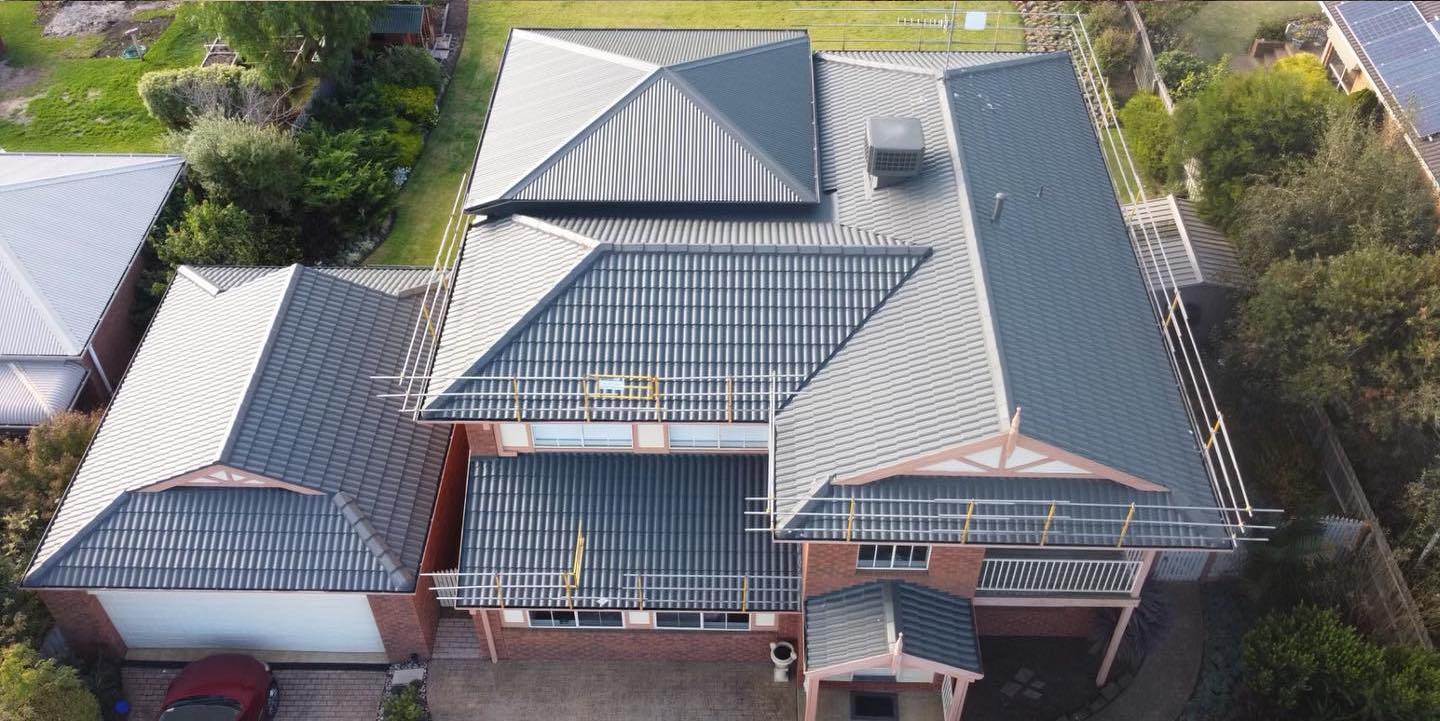
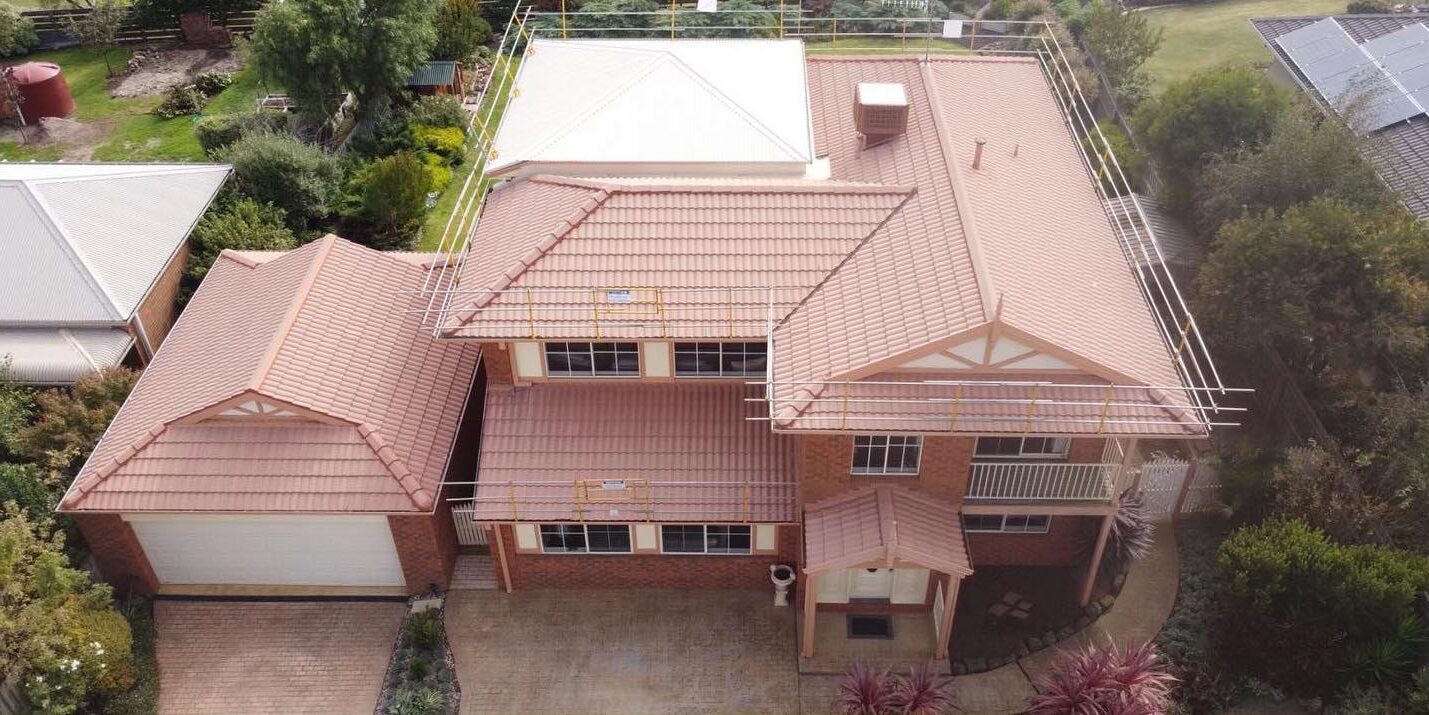
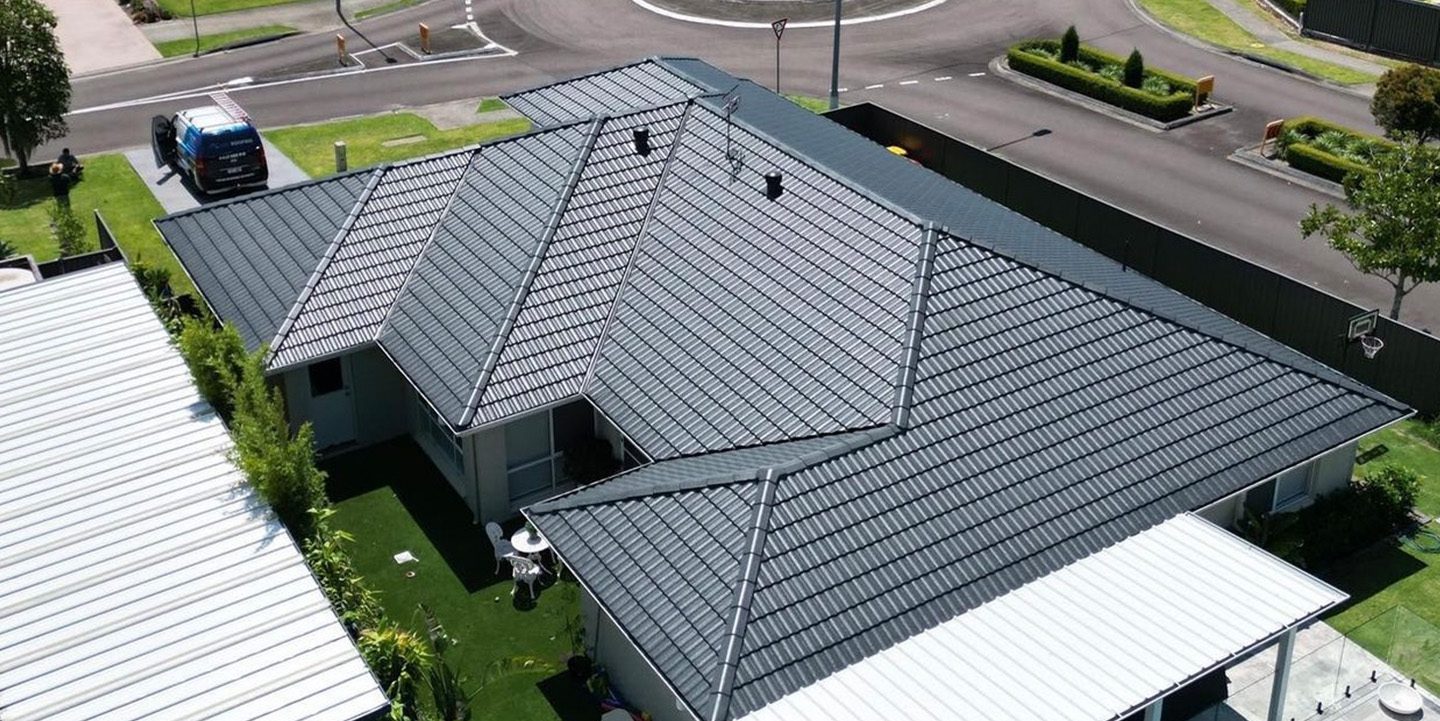
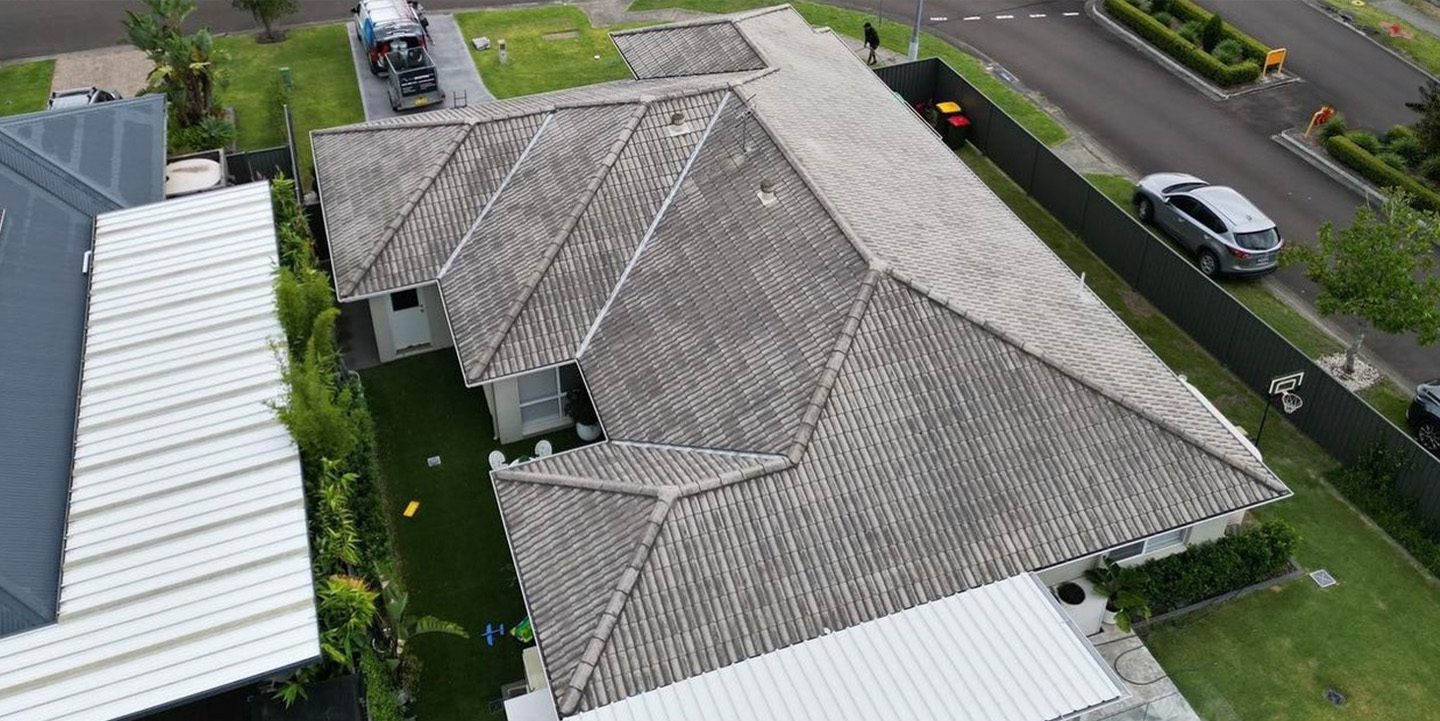
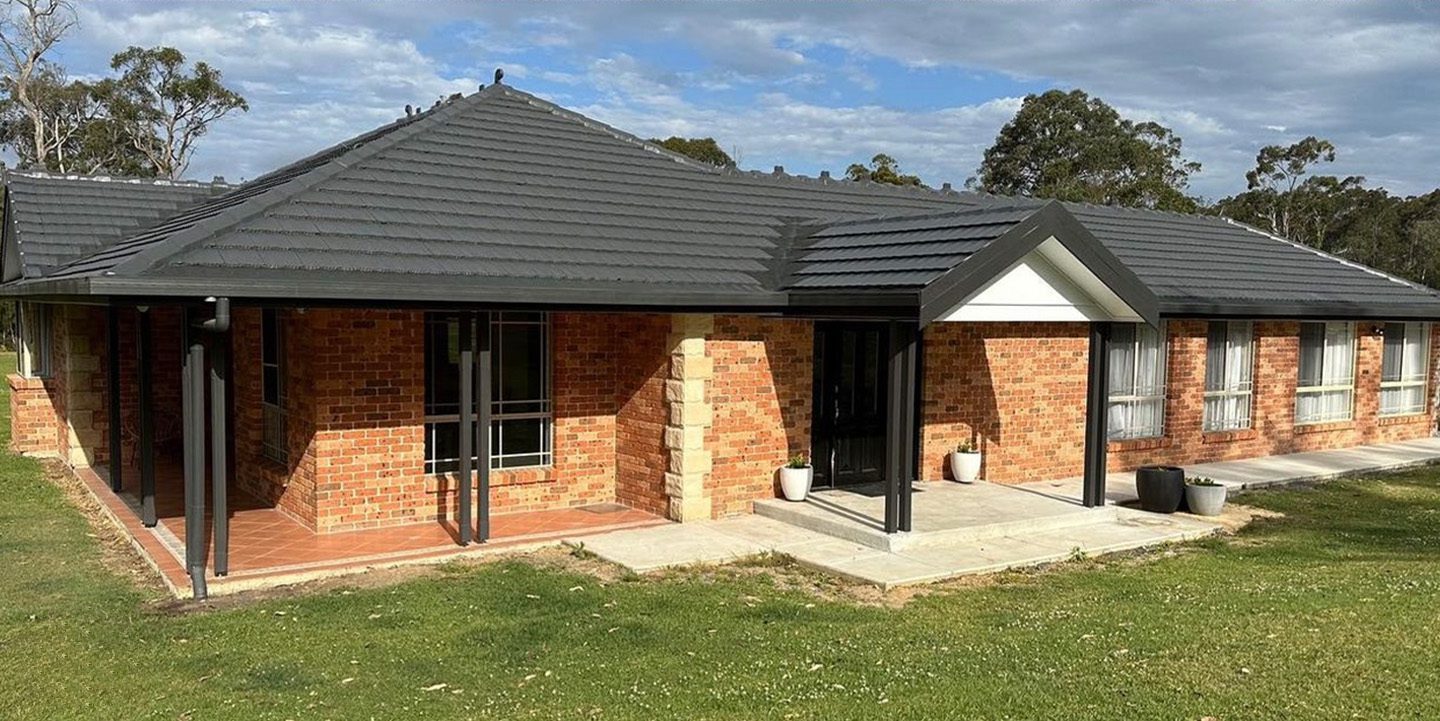
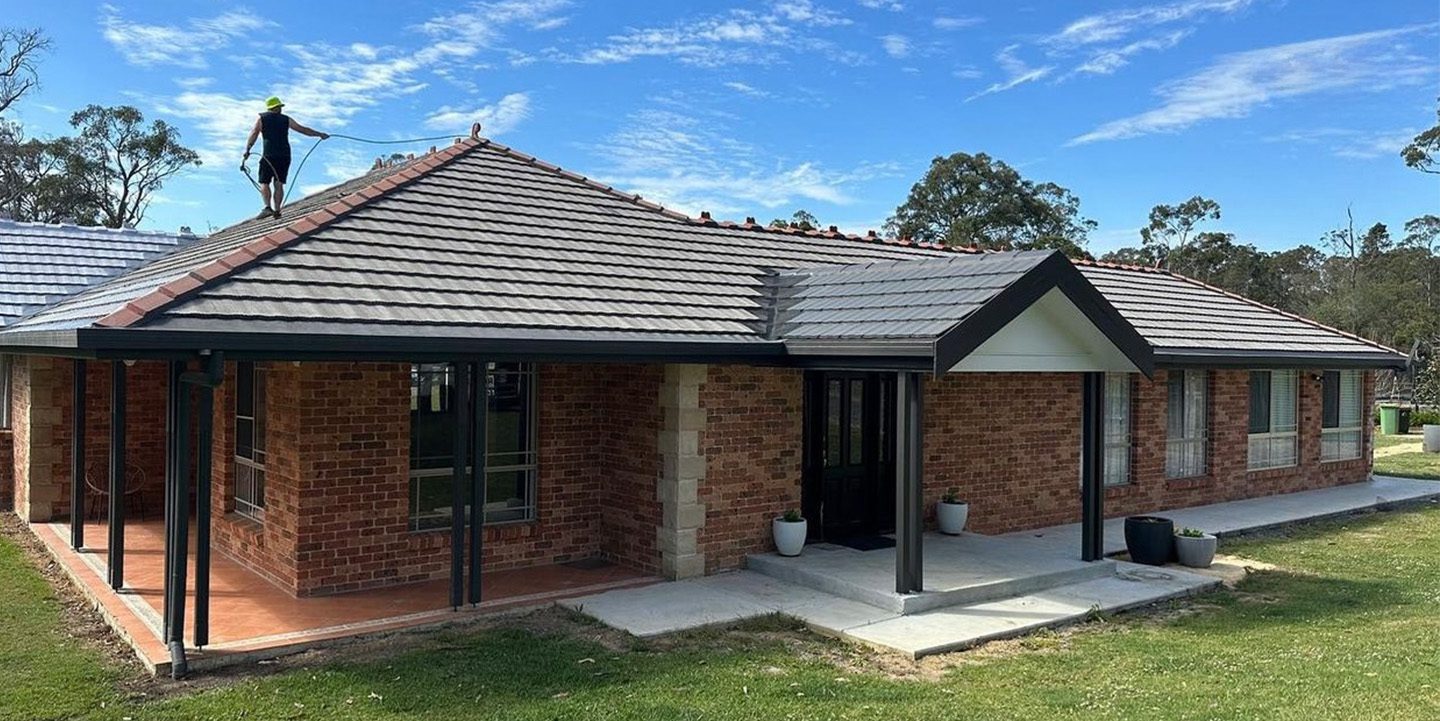
0B · Welcome (onboarding carousel)Full-screen before/after of three real RoofBros restorations, auto-advancing every few seconds — drag any slide anywhere to reveal its before/after. Before/After pills up top; one clear Get started plus a quiet Sign in link (one term everywhere — never "Log in" on one screen and "Sign in" on the next).
Your jobs and quotes, saved to every device.
By continuing you agree to the Terms and Privacy Policy.
0C · Create accountFields first, then Apple and Google side by side as the quick alternative, grouped with the primary button instead of competing with it up top. Show-password eye; the fields sit as one grouped unit, and the active row lifts to white with a soft warm-ink outline.
Your jobs and quotes, saved to every device.
That email looks incomplete: add its ending, like .com.au.
By continuing you agree to the Terms and Privacy Policy.
0C · Create account — validation errorChecked on blur, not on submit: the offending row outlines in error red (the same language as the OTP error), everything typed is kept, and the message names the fix, not just the problem (“add its ending”, never “invalid input”). The button stays enabled so retrying is one tap.
We sent a six-digit code to your inbox. Enter it to confirm your address — it’s how you’ll reset your password later.
0C2 · Verify your emailSlots in right after Create account. The email is the account’s only recovery channel — password-reset codes go here — so it’s verified while the roofer still has the password in hand: a mistyped address can’t silently lock them out later. Reuses 0E’s exact code component (locked email row, active box lifts to white, right-aligned Resend). Apple / Google sign-ups skip this — those emails arrive pre-verified. Back returns to 0C to fix a typo’d address; on verify → 0F business setup. Build rule — resume routing: onboarding is a state machine; on every launch the app opens the first incomplete step — not signed in → Welcome (0B); signed in but email unverified → here (0C2); verified but no business details → 0F; otherwise → the Jobs hub. So a roofer who kills the app mid-signup lands back exactly where they left off, and can never reach a quote with an unverified email or a blank docket header.
We sent a six-digit code to your inbox. Enter it to confirm your address — it’s how you’ll reset your password later.
That code’s incorrect. Check it or resend below.
0C2 · Verify your email — incorrect codeThe error twin, matching 0E’s incorrect-code state: all six boxes lift to white but outline in error red, an inline message names the problem, and Verify email stays enabled so retrying is one tap. (An expired code follows 0E’s other state — boxes clear, “that code expired, tap resend.”) This closes Flow 1 to full parity: every input screen now has its error sibling.
Sign in to your saved jobs and quotes.
0D · Sign inSame pattern as 0C: fields first, Apple/Google grouped with the primary button below. Session persists — like EagleView’s praised auto-login, this screen appears once, not daily.
Sign in to your saved jobs and quotes.
Email or password doesn’t match. Check them, or reset your password below.
0D · Sign in — failedWrong credentials don’t wipe the form (Nielsen #9 — recovery preserves work): both values stay, the message says what didn’t match and points at the recovery route, and Forgot password? sits directly below it. Deliberately does NOT say which of the two was wrong — standard credential-security practice.
Enter your email and we’ll send a six-digit reset code. Codes expire after 15 minutes.
0E · Reset — request codeCross top-right (modal dismiss). Six code boxes shown disabled as a preview of the next step; button sends the code.
We sent a six-digit code to your email. It expires in 15 minutes.
0E · Reset — enter codeSame field system as every other screen: email locks (dimmed), the active box lifts to white with the shared soft border, button becomes Verify code. Resend styled like the forgot link — slate, underlined, right-aligned.
We sent a six-digit code to your email. It expires in 15 minutes.
That code’s incorrect. Check it or resend below.
0E · Reset — incorrect codeAll six boxes lift to white but outline in error red instead of the neutral hairline; an inline message names the problem. Verify code stays enabled so retrying is one tap away.
We sent a six-digit code to your email. It expires in 15 minutes.
That code expired. Tap resend to get a new one.
0E · Reset — code expiredBoxes clear and disable again, same as before a code was ever sent; the error message explains why, and Resend code is the one clear next step.
Choose a strong password: at least 8 characters.
0E · Reset — new passwordNew password + re-type, grouped like the sign-up fields. Clean finish to the reset flow.
You’re all set. Sign in with your new password.
0E · Reset — successThe one moment in this flow with no close button — there’s nothing left to cancel. A quiet green badge, not a takeover: it settles in once (450ms ease-out scale, check a beat behind, success haptic) and then sits still — reduced-motion gets the static badge. Matching the flat, no-shadow system throughout.
Just once. This prints on every quote and delivery docket.
ABN checked against the free ABN Lookup register — we filled your business name from it. Registered for GST.
0F · Set up your businessThe missing capture, added — runs once straight after 0C create account, before the first-run tour, so a roofer never reaches a quote with a blank docket header. Business name and ABN are both required. The roofer types the one hard number — their ABN — and we validate it two ways: an instant on-device mod-89 checksum (no network, catches typos), then the free ABN Lookup register, which hands back the registered business name so we auto-fill it — less typing, no misspelled name on a quote (the “reduce their work” rule). That’s why ABN sits first: enter it, the rest fills itself. Green tick = verified; phone completes the three details that print on quotes and dockets (the same set F1 later edits). One-time and required, so there’s no × to skip — same as 0E success. (ABR Lookup is a small external dependency — keys sit with the client per the brief; the checksum works with zero dependencies regardless.)
Just once. This prints on every quote and delivery docket.
That ABN doesn’t check out — it’s 11 digits and the last one didn’t match. Look for a transposed number.
0F · Set up your business — invalid ABNThe checksum failing on blur, in the exact language as the 0C email error: the ABN row lifts to white and outlines error-red, everything typed is kept, and the message names the fix (“a transposed number”), never just “invalid.” Because the checksum runs on-device, this fires instantly — the roofer never waits on a round-trip to learn they fat-fingered a digit. Business name stays empty until a valid ABN resolves it. The button stays enabled so the retry is one tap.
Satellite-accurate roof measurements.
Dozens of recycled tile colours.
Delivery Australia-wide, straight to site.
Drop a pin on the address and we’ll trace the roofline for you.
Get an instant price based on your roof’s measurements.
Compare recycled tile colours side by side before you commit to one.
Choose a date and we’ll deliver straight to site.
0G · Welcome (first run)Shown once, straight after sign-up, using the same greeting treatment as the jobs hub. An auto-playing photo carousel with its own informative captions, a swipeable how it works tour and a 3-card preview of the real jobs list, one per stage (quoted, requested, delivered), then Measure your first roof. Tapping × dismisses to the clean jobs hub.
A1 · Jobs hub (home)Filter chips as the pipeline; aging dot flags idle quotes; New Quote is a uniform maroon tab (4 flat tabs, no raised FAB). Tapping any job card opens its job detail (D1).
A1 · Jobs hub — search activeTapping the search icon swaps it for a full-width field at the same 52px height as every other input, plus the same × used to dismiss every other screen in the app — not a text “Cancel” link. Chips and the list stay put, since with few jobs, search narrows the same list rather than replacing it with a separate results view.
A1 · Jobs hub — no resultsThe other half of search. It quotes what was typed back rather than a bare “No results”, so a typo is obvious at a glance, and it names the two ways out: fix the spelling, or make the job that isn’t there yet. The filter chips stay put — the roofer may just be filtered to the wrong status. Start a job is secondary here, not maroon: searching is a lookup, and the empty result shouldn’t push a new job harder than the correction the roofer probably wants.
D1 · Job detailThe hub: measurement, quotes, photos, notes. Every tile is a real button opening its own screen: Measurement → the read-only measurement detail, Quotes → D1a, Photos → D1b, Notes → D1c. Request delivery is the one primary here — short label, since deliver-vs-pickup is chosen inside D2. It’s quote-aware: with one quote it goes straight to the request; with two or more it opens a quick “which quote?” chooser (next) — shallow for the common case, unambiguous when it matters. The delivery timeline row opens the delivery detail; the whole screen scrolls. Scope note: the old “timeline updates with push” line is dropped — push is out of MVP scope. The timeline reflects what the roofer has done (requested), not live driver status.
14 Banksia St, Ryde · two quotes saved. Pick which one’s materials to request delivery for.
D1 · Request delivery — choose a quoteThe disambiguation step, now a full screen rather than a bottom sheet — a two-quote job deserves a clear, uncramped pick. Tapping Request delivery on a job with one quote skips this and goes straight to D2; with two (like this) you land here. Each row is the same qcard as D1a — colour, ref # and price; picking one opens D2 pre-filled from that quote. Keeps the D1 button shallow for the common case, unambiguous when there’s more than one. Back returns to D1.
14 Banksia St, Ryde
D1d · Measurement detail (read-only)What the Measurement tile on D1 opens for a saved job. It used to point at B3 — but B3 is the in-quote-flow version, carrying “Choose coating” on it. From a saved job the measurement is reference only: the aerial + traced outline, the same tabular figures (area, pitch, ridge, faces), imagery date and confidence — no quote-building CTA. The one action is Adjust measurement (opens B3a) for when the roofer spots the trace is off. Back-only header — a detail view, not a wizard step.
14 Banksia St, Ryde
D1a · QuotesBoth saved quotes for the site — the restore price and the full-reroof price, side by side so the roofer can pick the approach. Each card opens the saved quote read-only — that’s D1e, next (versions are snapshots, never overwritten, build rule 1). Delivery isn’t requested from here anymore — that moved back to the D1 primary (with the quote chooser when there are two), which fixed the depth problem and the competing-buttons problem in one go. So this screen is a clean list with a single job: Start another quote, its one maroon primary — a new quote with the address and measurement already attached (B0 → straight to colours, no re-entry: Hover’s “no reentry” rule, and a power-user shortcut). Scope note: the separate submit order to RoofBros (stock/ordering integration) stays out of MVP scope; the one in-scope handoff is Request delivery, now on D1.
Pottery Brown · New Install · 14 Banksia St, Ryde
D1e · Quote (saved)What a quote card on D1a opens — the screen the whole app produces, and the only place a saved quote could be read before this. Same line-by-line layout as C1 so it reads as the same document, with one deliberate difference: the quantities aren’t editable. No keypad fields, no steppers — that’s build rule 1 made visible, and it needs no button to explain it (a saved quote is a snapshot, never overwritten). A new version starts from Start another quote on D1a, one level up — a “revise” button here would have been the same action under a second name, so this screen stays single-purpose: read the quote, and book the materials for it. Request delivery is the primary, matching D1 and C3, and it skips the “which quote?” step since this one is already chosen. The total bar carries the reference and save date instead of “from calculator” — on a saved quote that’s the fact that matters. Scope note: no Send to customer action — sending/sharing a quote is out of MVP scope. This screen is how a roofer shows the customer: turn the phone around.
14 Banksia St, Ryde
9:12am
9:14am
2:31pm
 2:33pm
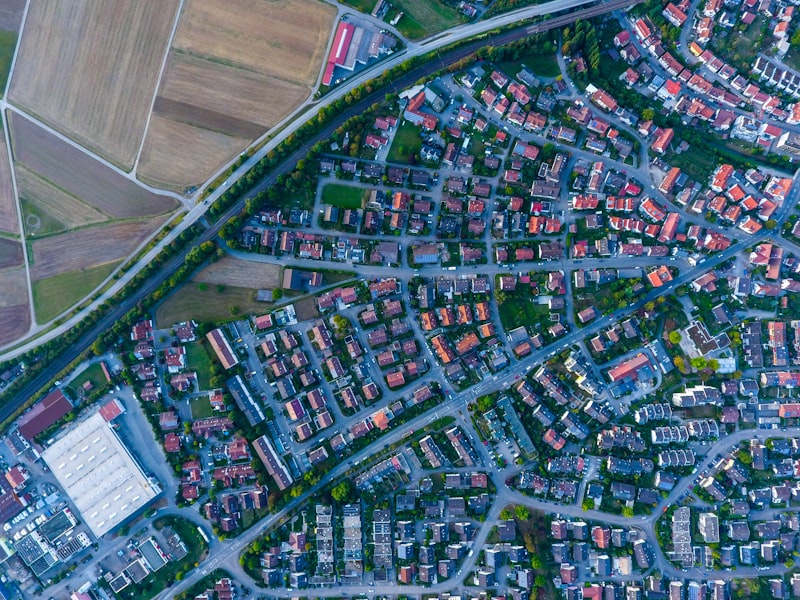
D1b · PhotosThe CompanyCam pattern from the research, gloves-first. Add photo opens a quick sheet — Take photo or Choose from library — so a roofer can shoot on the spot or pull in shots already on their phone. Camera shots get GPS + a burned-on time stamp (the before/after evidence trail that wins disputes); imported ones come in as-is. Grouped by day, newest first; markup (arrows, circles) happens after the shutter. Scope note: the earlier “uploads queue offline” line is dropped — offline sync is out of MVP scope.
14 Banksia St, Ryde
D1b · Photos — emptyDay one on every new job. Lighter than the jobs-hub welcome card (no video): a sub-screen is reached on purpose, so it only says what belongs here and why it is worth doing — the stamp is the evidence trail. The pinned Add photo stays exactly where it is in the filled state, so nothing moves once the first shot lands.
14 Banksia St, Ryde
9:12am
9:14am
D1b · Add photo — sheetWhat Add photo
opens, and the reason .scrim.sheet was kept when the
term explainer went. Two ways in, because both are real: shoot it
now, or pull in a shot already on the phone (the customer sent one,
or it was taken before the job existed). Take photo leads,
since on-site capture is the common case and the one that earns
the GPS and time stamp. Imported shots come in as-is — no
invented stamp on a photo we didn’t witness.
D1b · Photo viewer + markupTapping a photo opens it full-bleed on the app’s ink, so the shot is the screen and the only chrome is the markup bar. Markup happens after the shutter, never before — the CompanyCam rule: capture first so nothing is missed, annotate at leisure. Circle and arrow are the two marks that matter on a roof (flag the spot, point at it) in the maroon accent, with undo beside them. The time stamp stays visible because that is the photo’s evidence value, and delete sits top-right, away from the marks. Every part of the dark stage is on-system: the stage is --ink, never pure black; the stamp is the same overlay chip as the photo-grid stamp and the aerial badge; the tool bar reuses the tab bar's own structure (66px, four equal slots, one hairline top) because a bottom row of icon buttons already has one right answer here; and every translucent value is color-mixed from a token rather than an invented rgba. Inactive tools sit at 8.4:1, active at 15.8:1.
14 Banksia St, Ryde
Access via rear lane; gate code 4187.
Tue 14 Jul, 9:20amOwner wants the arvo for any site visits; dog in the yard, friendly.
Fri 3 Jul, 2:40pmD1c · NotesTimestamped free-text pinned to the job, newest first — gate codes, access, the dog. The newest note is the one D1’s tile previews, and D2’s drop-zone field suggests recent notes so “access via rear lane” never has to be typed twice. Searchable from the jobs-hub search along with addresses.
14 Banksia St, Ryde
D1c · Notes — emptyThe composer stays visible rather than hiding behind an “add” button — on a screen whose whole job is one text field, making the roofer tap to reveal it would be a step for nothing. Save note sits disabled until something is typed. The examples in the empty line are the real ones from the filled state, so it reads as a prompt, not marketing.
D2 · Delivery request — deliver to siteHeader now stacks (close on its own row, title below) like every other flow screen. The delivery address is read-only: materials go to the roof that was measured, so the destination is the job’s own site address and can’t drift from it — a typo here sends a truck to the wrong house. Where exactly to drop them on the property is the drop-zone note’s job, not a second address. Pre-filled from the quote; 24h-lead date + AM/PM window; drop-zone photo/notes plus a general notes field. Long form, so it scrolls with a pinned Submit. The × here confirms before discarding once anything’s entered — the same dialog as the quote flow. →
D2 · Delivery request — pickup at yardThe other segment state (the missing screen). Shows the RoofBros yard address to collect from — read-only, and never the roofer’s to edit: it’s RoofBros’ own yard. Swaps drop-zone for Pickup notes since you're collecting, and keeps the same materials, date and window.
Request #DR-2481 · Thu 16 Jul, morning. RoofBros will confirm the day and stock.
D3 · Request submittedDelivers on the reference number D2 always promised but never showed. One shared success screen for both Deliver-to-site and Pickup-at-yard — the copy above is the only thing that would vary by path. Scope note — resolved: the confirmation now reads “RoofBros will confirm the day and stock”. It used to promise “we’ll text you when it’s on the way,” which needs push/SMS — out of MVP scope, so the app was promising something it couldn’t do. It now matches D3a’s pending banner word for word: one promise, made once.
14 Banksia St, Ryde
“Driveway left of carport, no overhead wires.”
D3a · Delivery request — Requested (pending)The honest MVP state, and the answer to “what happens after I request?” Opened from a Requested job or the D1 timeline row. It shows the request itself — and now the whole request, not a summary line. Method leads, because deliver vs pickup was invisible before: a roofer who chose pickup saw a site address and could have waited for a truck that was never coming. Then where it’s going, the day and window, which quote it came from, the materials, and the drop-zone note and photo they attached — so the roofer can check exactly what the driver was told. Everything D2 collects is echoed back here. Laid over a timeline where only Requested is done; the rest wait on RoofBros. The amber banner names the state plainly, without promising a push it can’t send — and it sits directly under the title, not at the foot. It answers “why is nothing happening?”, which is the first question this screen gets, so burying it below four panels and the timeline meant scrolling to the end to find it. It also explains the Requested chip in the header, and an explanation five sections away from the thing it explains isn’t one. Same placement as every other banner in the app (B3’s low-confidence warning, F2’s delete notice): immediately after the object it’s about. One action sits pinned at the foot: Cancel request, which confirms first (next frame). A wrong Thursday is fixed by cancelling and requesting again — not by a separate “change” path, which would need RoofBros to handle an amended request as distinct from a new one. Cancel-then-rebook is unambiguous on both sides, and while the request is still Pending nothing has been booked to amend. Scope note: Confirmed / Scheduled / Delivered light up only when RoofBros’ side (stock/ordering integration + push) ships — out of MVP scope; the live-tracked Delivered version (D4) stays greyed. Per your call we draw Pending only for now — no Declined state yet. Change/cancel is in scope though: while a request is still Pending nobody has acted on it, so it’s the roofer’s own record to edit — no RoofBros integration needed.
14 Banksia St, Ryde
RoofBros haven’t confirmed it yet, so nothing is booked. The job goes back to Quoted and you can request delivery again any time.
D3b · Cancel request — confirmThe same safe-action-primary pattern as the discard-quote dialog: the destructive Cancel request is an err-outline button held separate above, and Keep request is the prominent primary sitting thumb-closest. The copy removes the fear before asking — nothing is booked yet, the job simply returns to Quoted, and the delivery can be requested again. Confirming returns to the job (D1) with the timeline back to its pre-request state.
3 Coral Ave, Cronulla
Left on the driveway, clear of the carport · 9:30am
D4 · Delivery detailOpened from the delivery row on a delivered job’s timeline — shown here for 3 Coral Ave (D1 is a different job still awaiting its delivery request, so they carry different reference numbers). The full status ladder — Requested → Scheduled → Out for delivery → Delivered, each stamped — plus the driver’s proof-of-delivery photo and drop note, so “where are my tiles?” is answered without a phone call (the whole point of the delivery moat). Note: shown in full now (no longer greyed). Its live states — Scheduled, Out for delivery, Delivered — and the proof photo are driven by RoofBros’ side (status + push), so this is the target design; it fills in as that integration lands.
Drop in an address and we'll measure the roof. Your quote starts from there.
Start here · tap NewEvery new quote begins at the jobs hub. Tapping the New tab (highlighted) opens this flow — shown here as the entry point so the journey reads from the very first tap.
What kind of job is this?
B0 · Job typeA leading icon per card (roller, tile grid) — same outline family as the rest of the app, not a one-off illustration — for faster recognition on repeat use. Tapping a card selects it and advances immediately; one exclusive choice with nothing else on screen doesn't need a separate Continue tap. Decides materials only — Coatings for Restoration, Tiles + Substrate for New Installation. Measurement method is a separate, later choice on B1 (AI measuring or manual entry), open to either job type.
Where's the job?
Already have your measurements? Enter them manually
B1 · Address & map confirmPlaces autocomplete, then a draggable pin on aerial imagery. ~50m drag threshold before re-geocoding. Shared by both job types, and the button says "Confirm address," not "Measure this roof," because how the roof gets measured is a separate choice made here, not by job type: Confirm address starts the AI scan (B2→B3) for either job type, and "Enter them manually" is the other route in, also for either job type, any time the roofer already has the numbers. Job type decides only what comes after the measurement — paint & colour for Restoration, tile for New Installation. (Locking the two together was a real architecture bug, fixed and logged; this caption used to still describe it.) If Places can't find the address at all — a new estate with no street data yet, a rural block — the last row of the list is "Can't find it? Drop a pin instead": the roofer positions the pin on the actual roof and the address is read back from where the pin lands. No separate address form, no typing four fields — and it's more accurate, since the pin is what the measurement runs on anyway. Real aerial photo now, not the flat gradient — only here and B2/B3, where it's standing in for actual Nearmap imagery; C2/D1 keep the abstract version since that one's an illustration of a colour, not a location.
The outline draws itself on your roof as we trace it. Every edge you see is measured.
B2 · The measuring revealScan-line over the real roof, stages narrating real work, polygon drawing itself. 5–12s of earned trust — never a spinner. If the scan drops out part-way, the next frame catches it.
14 Banksia St, Ryde
B2 · Measuring stoppedThe one moment the roofer was watching a progress bar with no way out. A scan can drop at 60% — signal goes on a roof, or the API times out — and until now nothing was drawn for it. Same amber banner as every other warning: it names the cause, says nothing is lost, and offers both ways forward. Try again re-runs the scan (the address and pin are already confirmed, so it costs one retry, not the whole flow); Enter measurements manually is the same escape hatch and the same wording as B1’s failed state, so the roofer meets one consistent way out. Distinct from that state: there, imagery never existed; here it did and the trace didn’t finish — which is why retrying is worth offering first.
14 Banksia St, Ryde
B3 · Measurement reviewImage + polygon stay on top; big tabular figures below; confidence is first-class. The primary names the next step for the job type chosen at B0 — Choose coating here (Restoration, → C0a then C0); a New Installation that measured by AI reads Choose tile (→ E1) instead. Adjust measurement opens B3a — the button now names the screen it opens, and both B3 states carry the same two buttons in the same order (next frame). The imagery date (Nearmap's real surveyDate field) sits top-left: a roofer should know if the photo predates a reno — and hand-adjusting the outline is free while a re-scan costs Nearmap credits. Nothing is saved yet — the measurement is held in the quote being built, and a job only lands in Jobs once you Save quote (C1). From here they continue (Choose paint) or leave: × asks to confirm, because leaving means the measurement isn’t kept and the roof would need re-measuring (a fresh Nearmap credit); Back steps back to re-scan. This is the happy path (98% — no banner needed); the low-confidence state is next → Roof quantities live here: Nearmap gives area, pitch and ridge, but not Starters and Three ways — so those two optional counts are captured here, next to the measured figures. Manual entry captures the same set on its own screen. Either way the calculator has everything before C0, and paint/colour never touches roof quantities again (that was the duplication bug).
14 Banksia St, Ryde
B3 · Low-confidence state (<85%)The real state the measurement API can return (it hands back a confidence value). Same screen as B3, one variable: the badge turns amber and a banner names the likely cause and the fix — never a silent bad number. The buttons deliberately do not change. An earlier draft flipped them (Adjust as primary, "Use these figures anyway" as secondary) and that was wrong on three counts: a roofer doing five quotes a day learns the maroon button moves them forward, so hijacking it drops them into an editor they didn't ask for; the warning is already carried twice, by badge and banner; and "use these anyway" scolds a professional who is looking straight at the outline and can judge it. Low confidence is uncertainty, not unavailability — the figures exist and are often fine. Contrast the measurement-failed state, where changing the CTA is right because the AI path is genuinely gone.
Drag a corner to reshape the outline — or edit a figure directly if the trace is off.
Drag and these recalculate — or tap a figure to type an exact value.
B3a · Adjust measurementWhere Adjust measurement (B3, both states, and D1d) goes — now with two ways to fix a wrong measurement, since the AI can trace the wrong edges. Drag a corner of the measured polygon (white dot, maroon ring; the grabbed one swells) and area/pitch recompute live; or tap any figure to type an exact value — the same tap-to-edit control as the quote lines — for when the roofer has real numbers off a plan or a tape. Save measurement returns to B3 with the corrected figures. Handles are 20px visual with a 44px hitSlop in RN; back-only header (a sub-edit of B3, not a wizard step — no ×, no stepbar).
What is this roof made of today? It sets the primer. Paint and colour come next.
Pre-set from the aerial scan where it can tell metal from tile; the roofer confirms or changes it in one tap.
C0a · Existing roofIts own screen, and deliberately so.
Everything after this point is about what the roof becomes
— brand, colour, finish. This is the one question about what
it is. Mixed into C0 it read badly: “Existing roof:
Terracotta” sitting directly above “Colour: Coastal
Terracotta” invites the roofer to read the second as the
roof’s current colour. Split out, the tense of each screen is
unambiguous. It sits after the measurement, not at B0, because
only here has the roofer just been looking at an aerial photo of the
actual roof — at job-type time the app doesn’t even know
which property it is. It is not cosmetic: the primer follows
the substrate, so terracotta gets terracotta primer, concrete gets
high-build, metal gets metal primer. The live web tool never asks
— its code hardcodes every restoration to a concrete profile
('Elabana'), so a terracotta roof silently gets
the wrong primer on every quote. Asking also gives metal roofs a
path; metal recoating is common work here and had nowhere to go.
Each option names its consequence rather than leaving the roofer to
infer it. Tap to advance, same as B0 — one exclusive
choice with nothing else on screen doesn’t need a Continue tap.
Shares step 4 with C0: both are the coating decision, so the
stepbar stays at four phases. Restoration only; New Installation
takes its substrate from the tile chosen on E1.
Pick the brand and finish going on the roof.
Colours are per brand — Shield coat swaps to its own reds & terracottas.
C0 · Paint & colour — RestorationThe second half of the coating decision, and now only about what the roof becomes. The existing substrate moved to C0a: one screen asking what the roof is, one asking what it turns into, so no screen mixes the two tenses. What’s left here is a clean finish-picker. Titled Paint & colour — it read "Quote details" before, which collided with C1 "Quote" and D1e "Quote" and promised a quote that doesn't exist yet. Paint brand (Industrial roof coatings / Shield coat) drives a brand-specific colour set — the fix for the old mixed list: Industrial shows Dover White / Paperbark / Dune / Coastal Terracotta / Gully / Monument; picking Shield coat swaps the whole set to its reds & terracottas (Roof Red, Manor Red, Tuscan, the Terracottas). Real names/hexes load from the catalogue API — representative until it’s wired. Then a free-text Additional details and the “This project is urgent” flag. Roof quantities live upstream now (Ridge/Starters/Three ways are captured with the measurement, not here — the fix for the earlier duplication), and there’s no “Contact details” step since the roofer’s details are already on file (F1). New Installation captures the same details + urgent on its own Build-quote step. Build quote is primary; Try a colour is the optional detour to the C2 visualiser before the quote, so colour drives the materials.
C2 · Colour visualiserThe optional colour check, now before the quote is built. A tile sample on a neutral grey stage, recoloured live in the chosen coating colour (Restoration — tiles stay, the coat changes). Tap a swatch to re-tint (<250ms, shadows preserved via Skia in the build); press-and-hold shows the original; the One-colour / Compare-two toggle swaps the preview. Reached from C0’s Try a colour; it returns to the flow via Build quote in Coastal Terracotta — the button names the colour it carries, because this is the screen where the colour gets decided and the roofer shouldn’t have to infer what a bare “Build quote” is taking with it. On this view there’s only one colour, already marked, so no confirmation is needed and it stays a single tap; the Compare-two view has two equals and asks in a sheet instead (C2a). Titled Try a colour, echoing the Try a colour button that opens it — it was the one screen in the app with no heading at all, just a floating back arrow. Back-only header and no stepbar, since it’s a detour, not a required step. No “Save quote” here — saving happens once, at C1. →
C2 · Compare two coloursSame screen, the toggle flipped to the split slider: two colours the roofer is weighing, left and right; drag the handle to wipe between them. Neither wears the checkmark. On this view the two are equals — calling one the pick and the other the runner-up invents a hierarchy the roofer doesn’t have, and an earlier build put the same maroon check on both, so nothing on screen said which colour the quote would take. Both get a neutral ring instead: in play, neither chosen. The sides are labelled left / right, the same language the browse compare already used. The choice is asked for where it matters — Build quote opens the sheet on the next frame — instead of being guessed here. Still no save button; still optional.
C2a · Which colour? — sheetWhere Build quote
goes from the compare view, and the reason compare mode carries
no checkmark at all. Two colours the roofer is weighing are
equals — marking one “picked” and the other
“comparing” invents a hierarchy they don’t have, and
the earlier build put the same maroon check on both, so nothing on
screen said which colour the quote would take. Compare mode now shows
two neutral rings (in play, neither chosen) and labels the sides
left / right — the same honest language the browse
compare already used — and the question is asked at the moment it
matters instead of being guessed earlier. Each row carries the real
swatch, in the same left/right order as the split: after judging
colours as pictures, picking them back out of a list of names would
throw away the only thing this screen earned. The sheet stays short so
the two roofs are still visible above it. Tapping a row is the
commit — no second confirm button, so it’s two taps from
compare and each one names the colour. Reuses .scrim.sheet
(D1b’s Add-photo sheet) and .opt-card with the swatch
where the leading icon normally sits — no new component language.
The One colour view needs none of this: one colour, already
marked, so its button just states it — Build quote in Coastal
Terracotta — and stays a single tap. Same pattern on the
browse path, where the button reads Start a quote in Titan
Gloss.
Coastal Terracotta · Restoration · 14 Banksia St, Ryde
C1 · Materials quote — RestorationCoatings only; tiles and substrate belong to the other job type, never shown together. AppliCad-style category groups. Every quantity is pre-filled by the calculator and rarely touched (edited-by-exception) — so each is a tap-to-edit field opening a numeric keypad, NOT a ±1 stepper: you can't nudge a derived count like 2,912 into shape, and a big keypad is more glove-friendly than tiny +/−. The primer is not a guess: it follows the Existing roof chosen at C0a — terracotta primer here, high-build for a concrete roof, metal primer for metal, straight from the calculator’s own rule. Every line carries its unit price and line total — the roofer can defend the figure at the kitchen table line by line, not just quote one number. The subtitle keeps the job context (colour · type · address) visible, so an interrupted roofer never wonders which site this is. GST-inclusive total with the subline; edits are revertable overrides. Save quote is the flow’s single save — the visualiser before it never saves, and the colour is already final, so the quote is built from it.
Quote #Q-10234 · $2,145 attached to 14 Banksia St, Ryde.
C3 · Quote savedCloses the loop — “Save quote” had no confirmation before. The badge settles in once (450ms ease-out pop + success haptic; reduced-motion gets the static badge) — the one celebratory motion in the app, spent on the peak. Primary is Request delivery for the just-saved quote — the one in-scope handoff, so the next step (booking the recycled tiles in for this quote) is one tap away. View job is the quiet secondary. No close/back button, matching 0E — there’s nothing left to cancel. Scope note: primary is now Request delivery, View job the calm secondary. The separate order-submission to RoofBros (stock/ordering integration) stays out of MVP scope.
Coastal Terracotta · Restoration · 14 Banksia St, Ryde
Nothing here is saved yet — discarding drops the measurement and this quote, and you’ll start again from the address.
Discard confirmation — leaving before Save quoteNothing in the flow is stored until Save quote (C1), so this guards every exit before then — measuring included (the × on B3 lands here too). Discarding drops the roof measurement and the quote in progress, so the roof would have to be re-measured on a fresh Nearmap scan — which is why the copy says you’ll start again, not “only the quote.” Back (chevron) is still instant and non-destructive; the safe Keep editing is the prominent primary and sits thumb-closest; the destructive Discard is an err-outline button held separate above it, never a matching filled twin next to the primary.
Drop in an address and we'll measure the roof. Your quote starts from there.
Start here · tap NewEvery new quote begins at the jobs hub. Tapping the New tab (highlighted) opens this flow — shown here as the entry point so the journey reads from the very first tap.
What kind of job is this?
B0 · Job type — New InstallationA leading icon per card (roller, tile grid) — same outline family as the rest of the app, not a one-off illustration — for faster recognition on repeat use. Tapping a card selects it and advances immediately; one exclusive choice with nothing else on screen doesn't need a separate Continue tap. Decides materials only — Coatings for Restoration, Tiles + Substrate for New Installation. Measurement method is a separate, later choice on B1 (AI measuring or manual entry), open to either job type.
Where's the job?
Already have your measurements? Enter them manually
B1 · Address & map confirm — manual pathPlaces autocomplete, then a draggable pin on aerial imagery. ~50m drag threshold before re-geocoding. Shared by both job types, and the button says "Confirm address," not "Measure this roof," because how the roof gets measured is a separate choice made here, not by job type: Confirm address starts the AI scan (B2→B3) for either job type, and "Enter them manually" is the other route in, also for either job type, any time the roofer already has the numbers. Job type decides only what comes after the measurement — paint & colour for Restoration, tile for New Installation. (Locking the two together was a real architecture bug, fixed and logged; this caption used to still describe it.) If Places can't find the address at all — a new estate with no street data yet, a rural block — the last row of the list is "Can't find it? Drop a pin instead": the roofer positions the pin on the actual roof and the address is read back from where the pin lands. No separate address form, no typing four fields — and it's more accurate, since the pin is what the measurement runs on anyway. Real aerial photo now, not the flat gradient — only here and B2/B3, where it's standing in for actual Nearmap imagery; C2/D1 keep the abstract version since that one's an illustration of a colour, not a location.
B1 · Measurement-failed stateThe real failure mode we traced from the live reference tool, finally built instead of just logged as a backlog item. Same amber tint/border as every other warning — no separate "error illustration." Available to either job type; not exclusive to New Installation.
14 Banksia St, Ryde · enter the figures you already have.
Only have width and length? Work out the area
Manual measurementsNot exclusive to New Installation — the
other side of the fork from B1, reached either by "Enter them
manually" or by the measurement-failed state, for either job
type. The subtitle now carries the site address: this was
the one screen in the flow with no job context, so a roofer
typing 230 and 22.4 had nothing on screen confirming which roof
the figures belong to — the same gap fixed on C1. The CTA names the actual next step rather than a vague
"Continue": Choose tile here (New Installation → E1), or
Choose coating on the Restoration instance
(→ C0a). Either way it skips B2/B3 — nothing to review when the
roofer just typed the numbers. Work out the area opens a
small sheet: width × length + the pitch, computed with the
calculator's own calculateRoofArea — a roofer has
tape-measure numbers more often than an area. Trade terms
(Starters, Three ways, Sarking) are left plain: this is a
roofer's own vocabulary, and glossing it in their working tool
would read as talking down to them.
Nothing saved yet (same as B3): the typed dimensions live in the quote being built — the job only lands in Jobs once you Save quote (C1). × asks to confirm, and discarding means the numbers have to be re-entered; there’s no auto-save and no “Measured” limbo state.
E1 · Colours — the tile chart — in the quote flowThe fourth tab (restored from Deliveries): "browse the tile colour chart," which the brief asks for as a standalone capability — not only mid-quote. Profile first, then its colours — matching the real data model: the material segment (Terracotta / Concrete) narrows the profile chips, and the grid shows only the colours that profile actually comes in. This is a correction: the grid used to mix colours from every profile with the profile as a subtitle, but 22 of 35 colour names repeat across profiles (Peak, Bedrock, Comet, Earth and Mars all exist in Marseille and Nouveau), so a flat colour grid showed the same name three times and a colour meant nothing until you read the small print. Profile also drives the maths — tiles/m² and the full-row packaging — so it is the bigger decision and now leads. Real Monier names throughout, recycled stock badged. The New Installation flow enters this same library contextually (from Manual measurements), where it shows a back button instead of the tab bar — and now carries the stepbar too, at 4 of 4: choosing the tile is part of building the quote, the same phase as Restoration’s C0 paint step. It used to read 3 of 4, which put the same conceptual step in a different segment depending on which path the roofer took.
Recycled terracotta · raised profile · in stock at the yard
E2 · Colour detail — in the quote flowThe compliance trio (SA / SRI / LRV) + BASIX class — quoting infrastructure in NSW, not decoration. Build quote is primary — it carries the chosen tile straight into C1 (the quote). Try a colour is the optional detour to the C2 visualiser before building, so colour can drive the materials rather than being a stale afterthought — exactly like Restoration’s C0. Stepbar reads 4 of 4, matching C0 — the phases are Job · Site · Measure · Quote, and picking the tile belongs to Quote, not Measure.
C2 · Colour visualiser — New Install pathAn optional colour check, reached from E2’s “Try a colour”: a recycled-tile sample on a neutral grey stage (#ECECEC), a clean rectangle, recoloured live. Tap a swatch and the tiles re-tint in under 250ms with shadows preserved (the mockup fakes it with translucent shading; the build uses Skia’s luminance-preserving recolour). Press-and-hold shows the original; the “One colour / Compare two” toggle swaps only the preview. It carries the picked colour back via Build quote — back-only header, no step dots, because it’s a detour, not a step.
Pottery Brown · New Install · 14 Banksia St, Ryde
C1 · Materials quote — New InstallationEvery quantity here is the real calculator's output for this roof (Marseille, 230 m², 18 lm ridge) — including the two things roofers argue about: tiles round up to full packing rows (2,912, not the raw 2,875 — Marseille ships 56 to a row), and the Monier delivery-fee tier is a quoted line, not a surprise (over 1,000 tiles → per-100-tile units). Two lines carry a dotted spec because they're real calculator inputs the app was never asking for: ridge type (terracotta ridges 2.1/m vs A-Line 2.4/m — +16% on ridge caps) and batten type (8 vs 12 per bundle — −31% on bundles). Both show the spec on the line whose number they change; tapping opens the two options in a sheet. Their defaults come from Profile → Quote defaults, since a roofer uses the same battens on every job — so the common path needs no taps and the maths still can't silently fall back to a wrong default. Unit prices are indicative until the price book lands — the total bar says so on the screen itself, not just in this caption, so a client preview can’t read them as quoted prices. Quantities are real; money is not, yet. C2 (optional) visualises the colour before this — same order as Restoration. Save quote writes it to Jobs.
Quote #Q-10235 · $25,800 attached to 14 Banksia St, Ryde.
C3 · Quote savedSame terminal screen as the Restoration path — one success state shared by both quote flows, same pop-in and same two actions: Request delivery for this quote, or view the job. Requesting delivery later also lives per-quote in D1a. Scope note: same as the Restoration C3 — primary is now Request delivery, View job secondary; the order-submission to RoofBros stays out of MVP scope.
E1 · Colours — the tile chartThe fourth tab (restored from Deliveries): "browse the tile colour chart," which the brief asks for as a standalone capability — not only mid-quote. Profile first, then its colours — matching the real data model: the material segment (Terracotta / Concrete) narrows the profile chips, and the grid shows only the colours that profile actually comes in. This is a correction: the grid used to mix colours from every profile with the profile as a subtitle, but 22 of 35 colour names repeat across profiles (Peak, Bedrock, Comet, Earth and Mars all exist in Marseille and Nouveau), so a flat colour grid showed the same name three times and a colour meant nothing until you read the small print. Profile also drives the maths — tiles/m² and the full-row packaging — so it is the bigger decision and now leads. Real Monier names throughout, recycled stock badged. The New Installation flow enters this same library contextually (from Manual measurements), where it shows a back button instead of the tab bar.
E1 · Colours — search activeThe colours search state that was missing (the Jobs hub had one, this didn’t). Tapping the search icon swaps the title for a full-width field at the same height — same × dismiss as everywhere else — and narrows the grid live: “sa” leaves Sambucca and Salt Spray. Segment and profile chips stay put; search narrows within the current filter, no separate results page.
E1 · Colours — switching profileThe two filters working together. The Terracotta segment sets which profile chips are offered (Marseille, Nouveau, Nullarbor, Urban Shingles); tapping a chip swaps the grid to that profile’s own range. Marseille carries 14 colours, Nullarbor only 3, Cambridge and Madison a single one — a real difference the old flat grid hid completely. Concrete works the same way. The grid narrows in place; nothing navigates.
Terracotta · raised profile · in stock at the yard
E2 · Colour detailThe compliance trio (SA / SRI / LRV) + BASIX class — quoting infrastructure in NSW, not decoration. From the browse tab there’s no job yet, but browsing has to lead somewhere — a catalogue you can’t act on is a dead end. So the primary is Start a quote: it opens the New Quote flow with this tile already chosen, and the roofer picks job type and address from there. Try a colour is the optional preview beside it — the same commit-primary + preview-secondary pairing C0 and the in-flow E2 use, so the screen behaves the same wherever it’s reached. Try a colour opens the visualiser (the C2 stage, its One-colour / Compare-two toggle) to weigh colours side by side on a tile sample. Preview-only here — no “Save quote,” since there’s no job to save to. Data sheet (PDF) opens the viewer (E3, after the visualiser).
C2 · Colour visualiser — browseWhere Try a colour on E2 lands. The same visualiser stage as the quote flow — a tile sample recoloured live — but reached from a browse, so there’s nothing to save into yet: back-only header, no stepbar, and where the quote flow says Save quote this says Start a quote — the same slot, carrying the previewed tile into a new quote instead of dead-ending on a colour the roofer just decided they liked. Tap a swatch to re-tint; press-and-hold shows the original. The One colour / Compare two toggle switches to the split view, next.
C2 · Compare two colours — browseThe split view, with the two colour rows: the tile sample is divided by a draggable slider — Titan Gloss left, Bedrock right. The top row sets the left colour, the bottom row sets the right, so each side is chosen independently rather than one fixed and one swapped. Drag the handle to reveal more of either. Both selections wear the neutral ring, not the checkmark — same rule as the in-quote compare: two colours being weighed are equals, and nothing here has been chosen yet. Weighing two recycled-tile colours side by side before there’s even a job — and Start a quote asks which one in the same sheet pattern as C2a — with the two tile colours in place of the coating pair — then carries it into a new quote, so the comparison actually decides something. Two independent rows survive precisely because neither side has to be the pick.
Marseille Titan Gloss · PDF · 2 pages
E3 · Data sheet viewerWhere Data sheet (PDF) on E2 actually opens — it was a dead-end button before. The PDF renders in-app (skeleton shown here; the build uses a native PDF view), and Download data sheet saves the PDF to the device (Files / Downloads) so the roofer keeps a copy to email the BASIX certifier or print later. Back-only header, same sub-detail rule as E2.
F · Profile & settingsFills the Profile tab that had no screen behind it. Identity sits in a bordered card up top — a maroon monogram tile (square, echoing a roof tile; tap the badge to set a business logo) beside name, business and email, the details that print on a quote. Then only what a roofer actually touches: Quote defaults (ridge type and batten type — two real calculator inputs that were never captured anywhere; set once here because a roofer uses the same battens on every job, overridable per-quote on C1), business details (opens F1, next), change password (routes into the same reset flow as 0E), support contact, legal, and a separated Sign out (which confirms first, next) and Delete account (store-required — both Apple and Google mandate in-app account deletion; opens F2). Flat rows with hairline dividers — the one spot of accent is the avatar, staying in our system.
These print on every quote and delivery docket.
F1 · Business detailsThe last chevron on F, now with a screen behind it. Same grouped-input pattern as sign-up; name, business, phone and ABN are what a quote header legally carries in AU. The sign-in email is shown but locked (dimmed, the 0E treatment) — it’s the account credential, and changing it is a support action in v1, not a field edit. Save details uses the standard button loading state, then returns to F.
You’ll need to sign back in to see your jobs and quotes. Nothing is deleted.
F · Sign out — confirmSign out is a re-login event, so it confirms first (it was a straight-out action before). Same language as the discard confirm: the safe Cancel is the prominent primary, thumb-closest; the destructive Sign out an err-outline button held above it. The copy reassures nothing is deleted — signing out isn’t account deletion (that’s F2, next).
This permanently removes your account and everything in it.
F2 · Delete accountThe store requirement, built — both Apple and Google mandate an in-app way to delete an account or the app is rejected. Opened from the Delete account row on F. Names exactly what goes (jobs, quotes, measurements, photos) in an amber banner, requires the password to confirm (so a handed-over phone can’t nuke the account), and puts the destructive Delete my account as an err-outline button with Cancel the calm secondary below. The one place the app says “irreversible” plainly.